
The Access Log in the Portal records all activity that occurs within the Portal and within the Glance backend settings for a group.
To view the Access Log, log in to the Portal and click Access Log in the left navigation panel.
Input the Start date and End date for the activities to review, then click the green Go button.
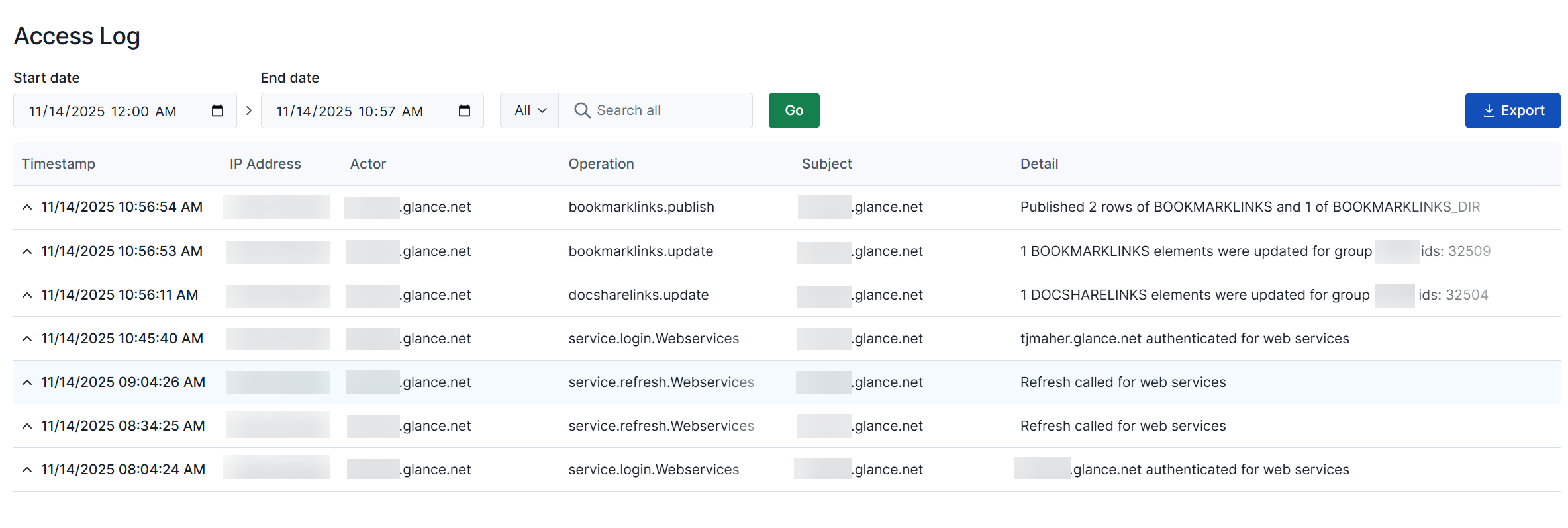
- The Timestamp column displays when the activity occurred.
- The IP Address column displays the IP address from where the activity occurred.
- The Actor column displays the user responsible for the activity.
- The Operation column displays where the activity occurred and the type of action taken.
- The Subject column displays the user impacted by the activity. This name will default to the user responsible for the activity if it impacts the entire group.
- The Detail column displays additional information regarding the activity.
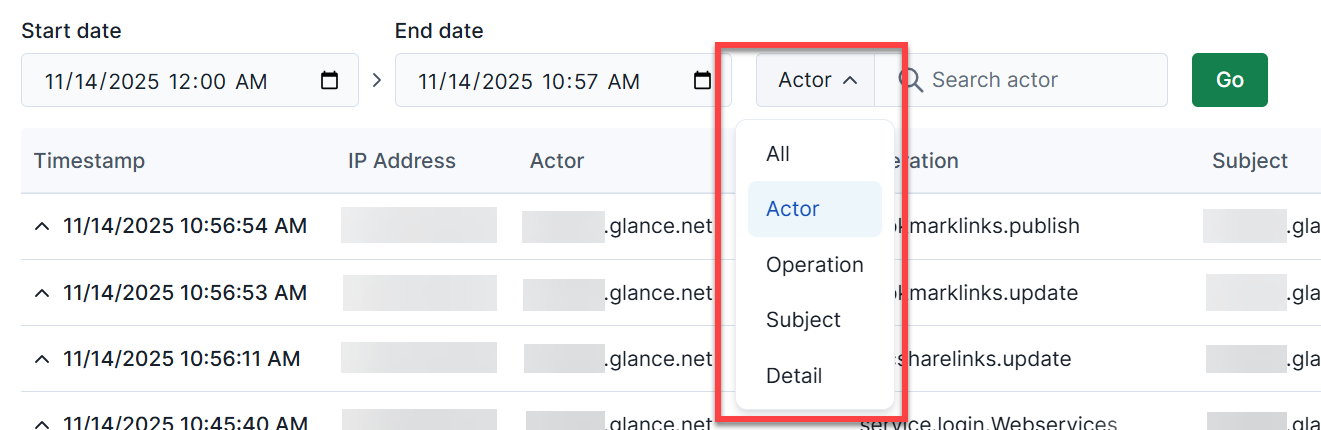
Click the caret next to the magnifying glass icon to search for specific activities by user or operation.
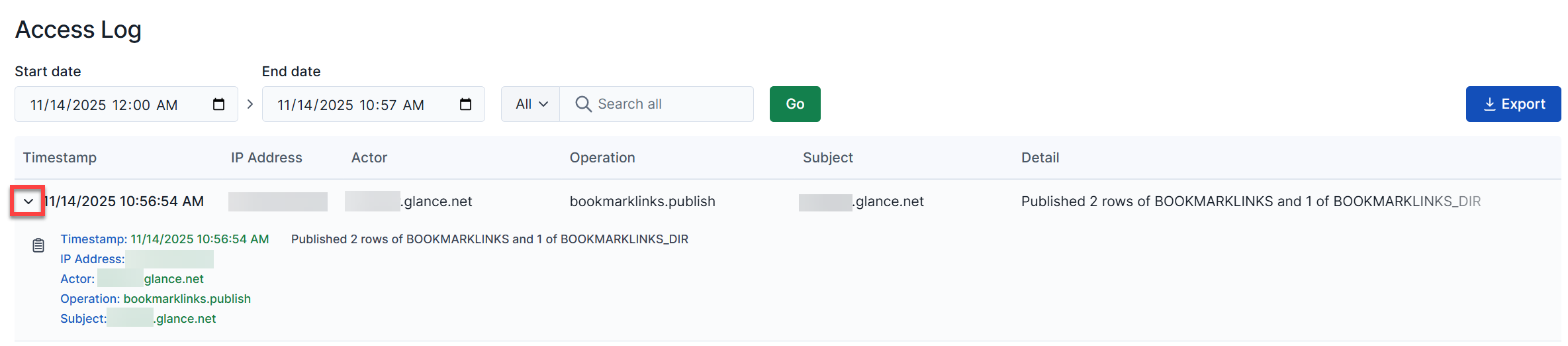
Click the caret next to the Timestamp column to view additional details about the activity.
Click the blue Export button to download a CSV file containing the results.