
Within the Users section, you can add, edit, and delete users and roles.
Add Users to Your Account
To add users to your account:
- Navigate to the Portal and click on the Users section.
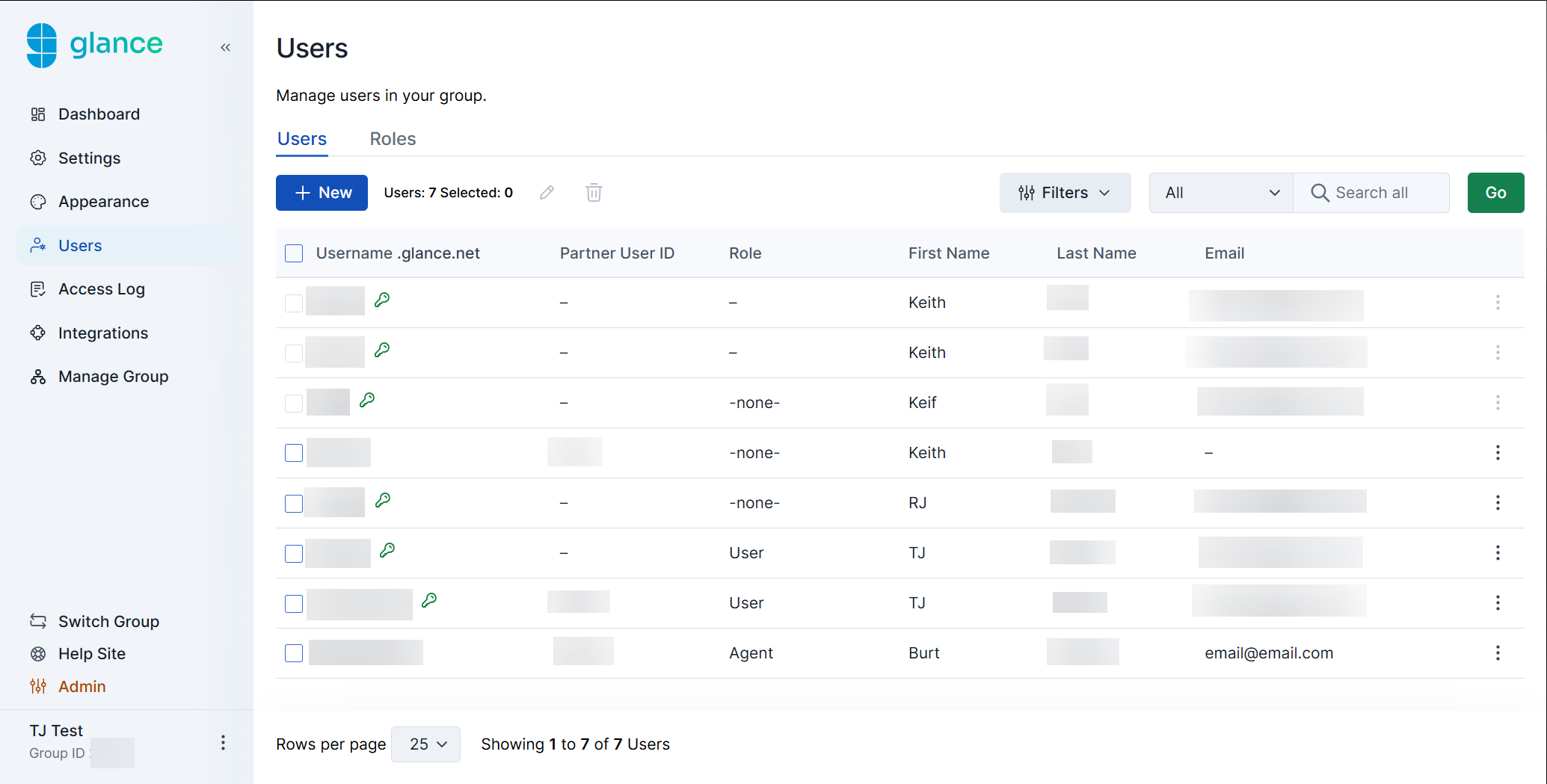
- Click New.
- Complete the applicable fields for the new user:
- Username - The user name that they will use to login
- Partner User ID - The user id
- First Name - The first name of the user
- Last Name - The last name of the user
- Role - The role for the user (if required)
- Email - The email for the user
- Password - The password for the user
- Confirm Password - The password for the user
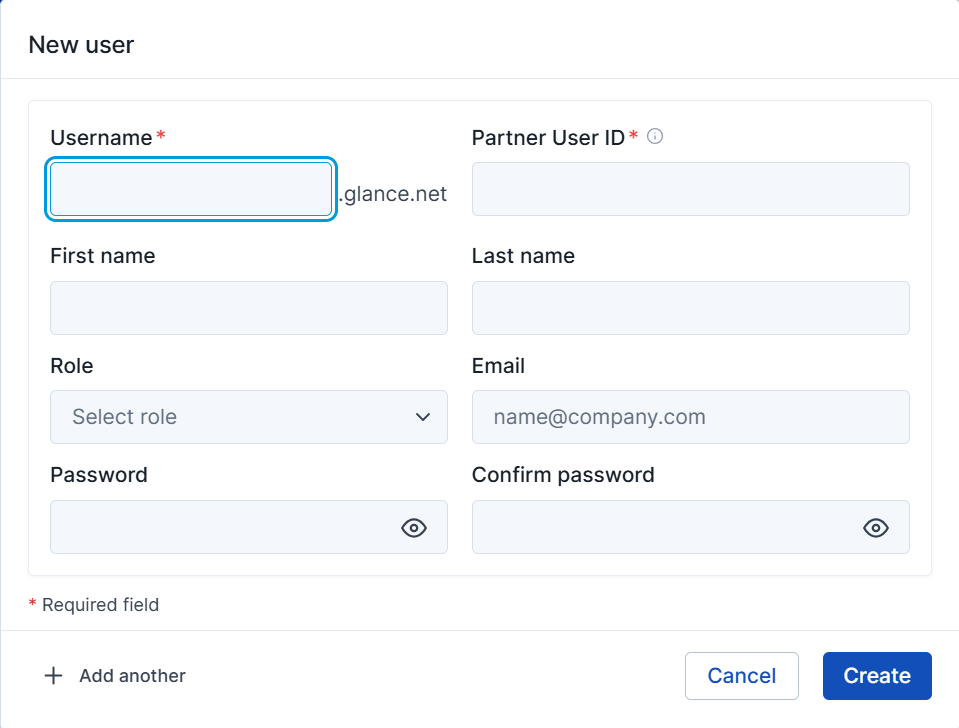
- Click Create.
Import Users
Import users using a CSV file by completing the following steps:
- Click the Import button.
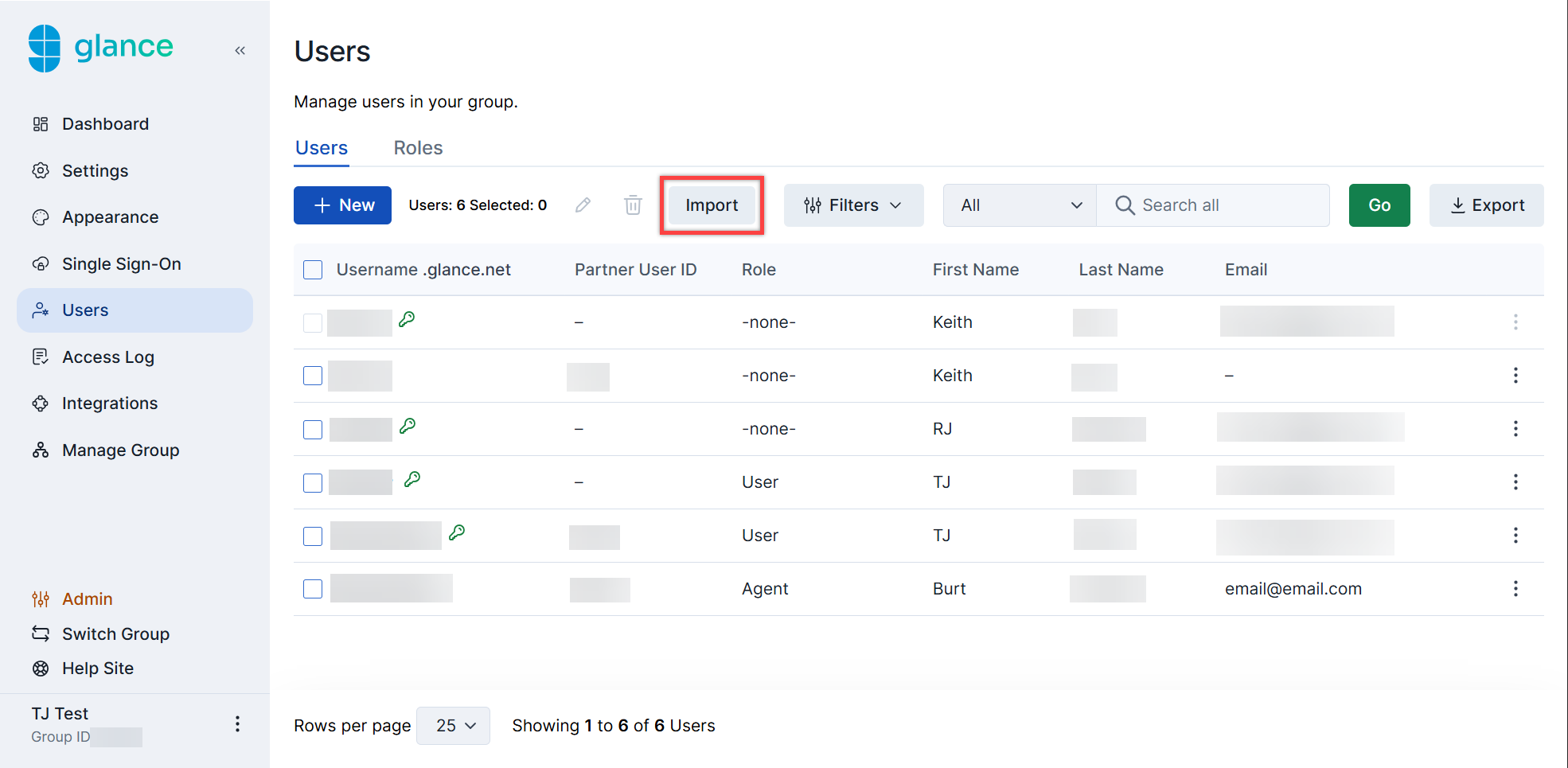
- Click Add Users.
- Drag and drop or select the CSV file to be uploaded.
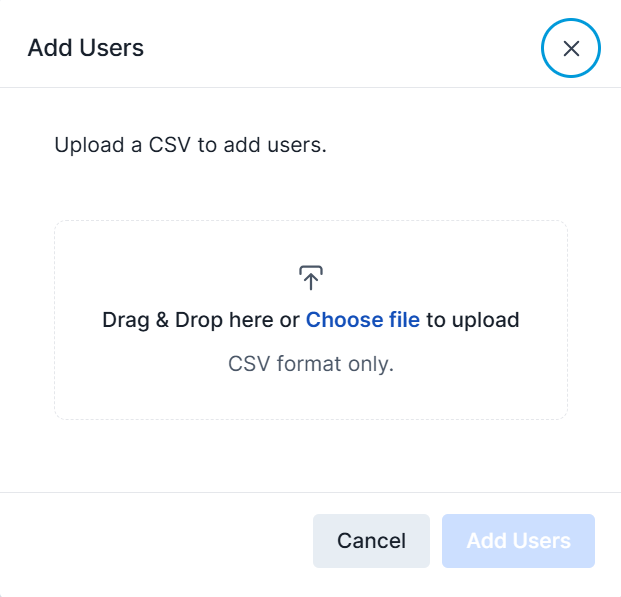
- Click Add Users.
Export Users
Click the Export button to download a CSV file with all of the user information.
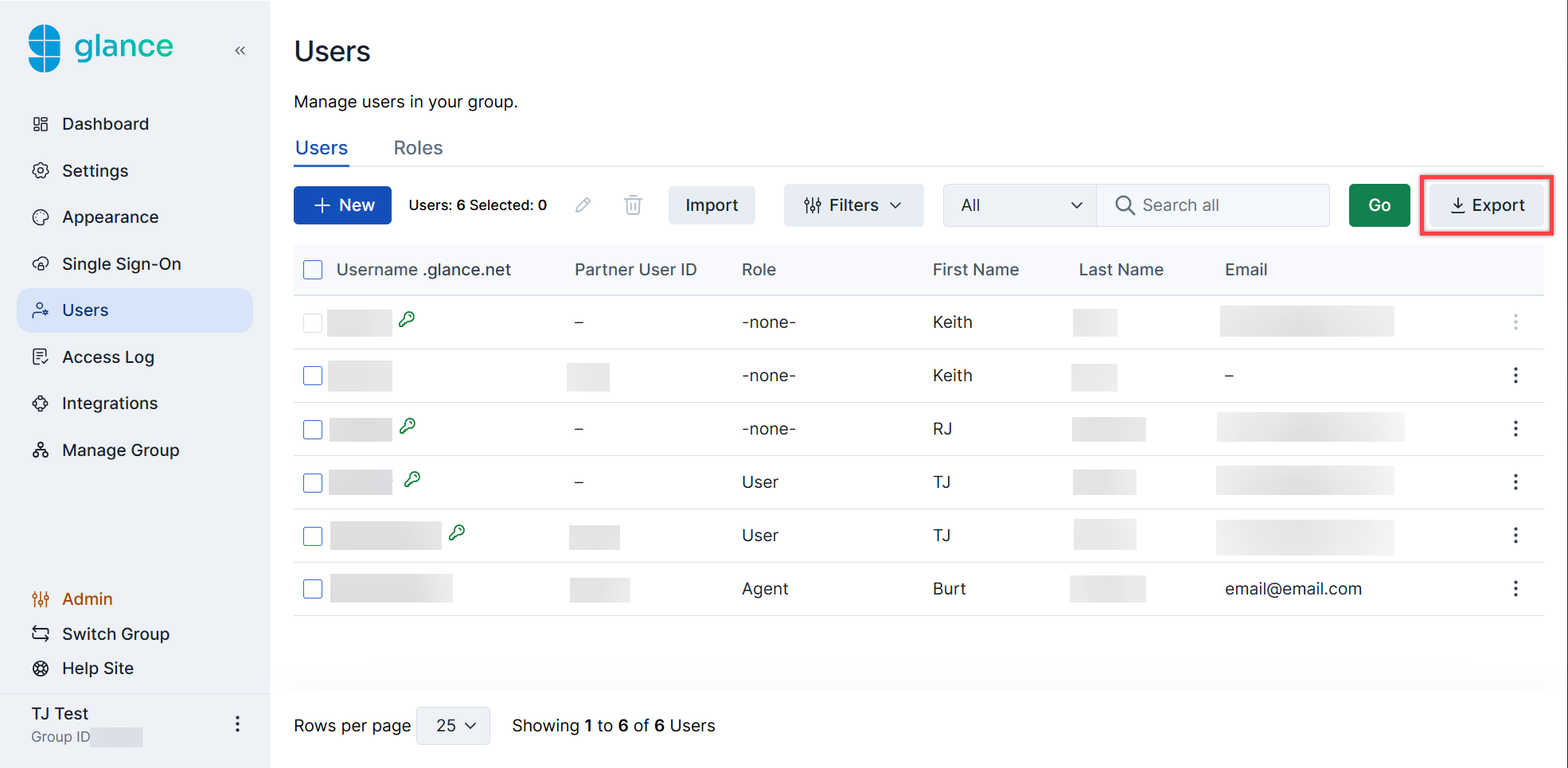
Edit User Information Within Your Account
Follow the steps below to update user information:
- Navigate to the Users section.
- Click the ellipsis on the right side within the user's row.
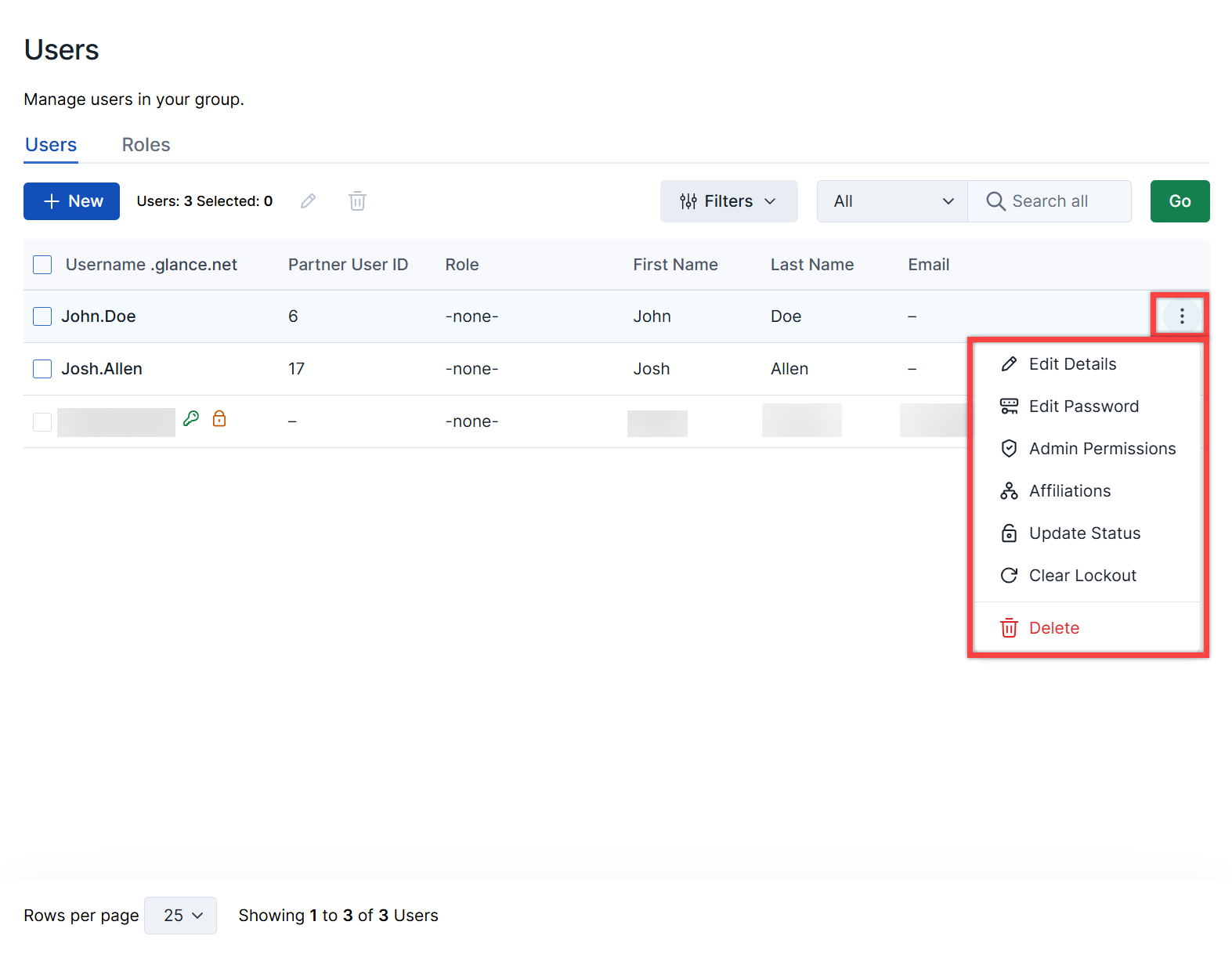
- Edit Details - Update the username, Partner User ID, role, first name, last name, and email.
- Edit Password - Update the password.
- Admin Permissions - Modify admin access and permissions.
- Affiliations - Manage subgroup affiliations.
- Update Status - Activate or deactivate the account.
- Clear Lockout - Remove a login lockout.
- Delete - Permanently remove the user.
Create Roles
Roles can be created within the Portal to:
- Provide specific team members special access to Glance feature(s).
- Run session activity reports on teams.
Complete the following steps to create a role:
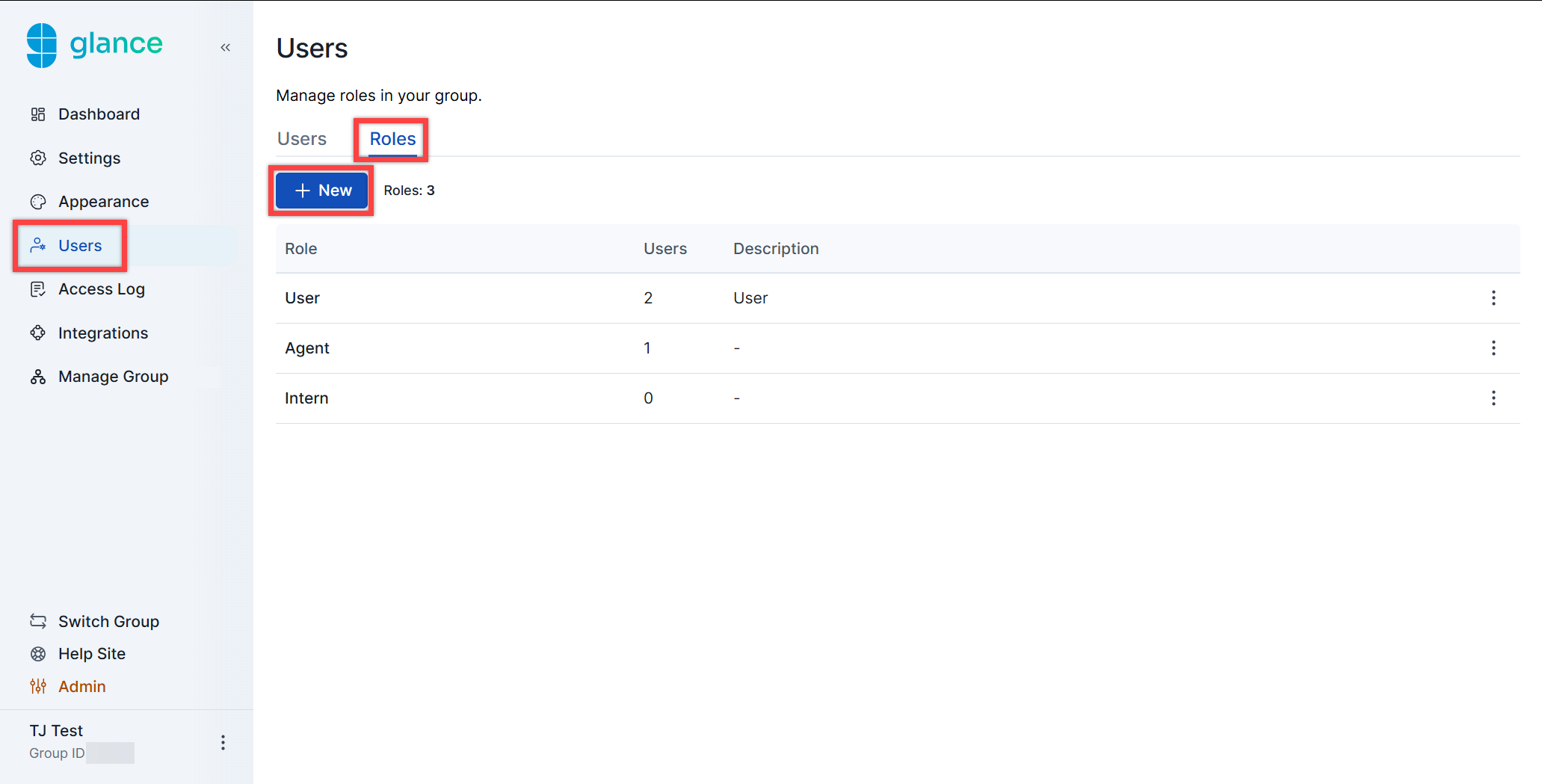
- Navigate to the Users section and click the Roles tab.
- Click New.
- Fill out the following:
- Role: Assign a name for the role.
- Description: Give a brief description which will be helpful for your team when reviewing the role.
- Role Permissions: Assign the capabilities and features for this role.
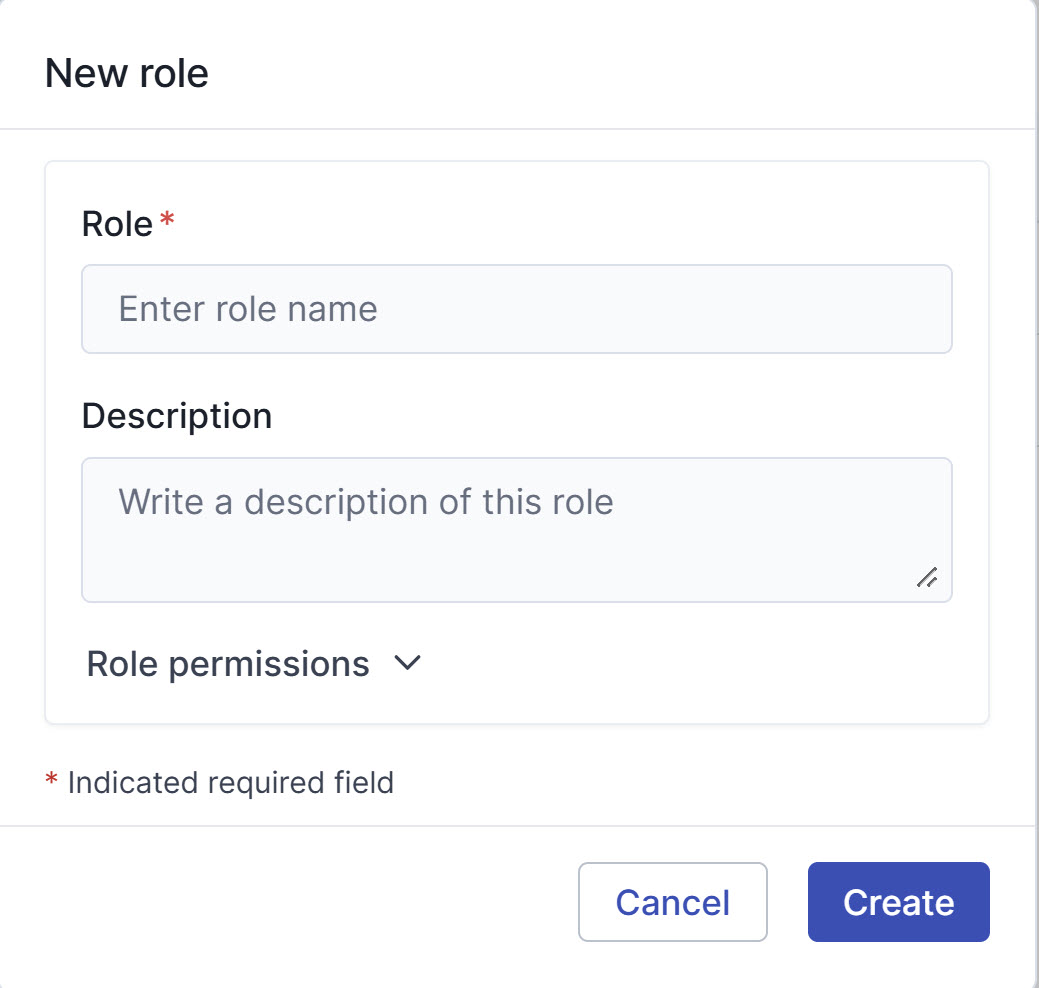
- Click Create.
Edit Role Details Within Your Account
Follow the steps below to update role names, descriptions, and permissions:
- Navigate to the Users section.
- Click the Roles tab.
- Click the ellipsis on the right side within the role's row.
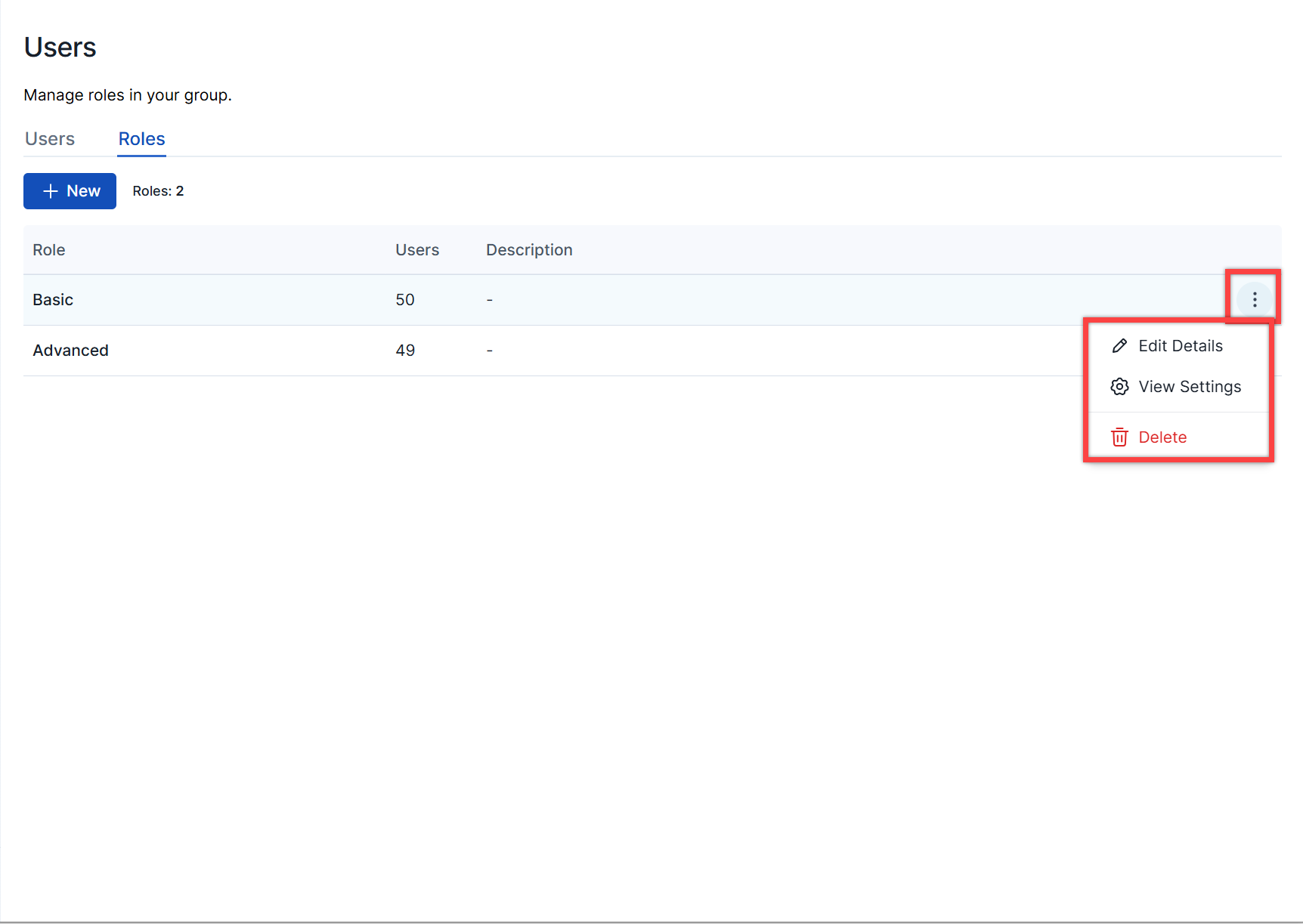
- Edit Details - Modify the role's name and description.
- View Settings - Review assigned permissions and settings.
- Delete - Permanently remove the role.